• English
  • 中文 (中国)
  • ES Español
  • HI हिन्दी
  • AR العربية
  • BN বাংলা
  • PT Português
  • RU Русский
  • JA 日本語
  • DE Deutsch
  • FR Français
  • ID Bahasa Indonesia
  • TR Türkçe
  • TA தமிழ்
  • FA فارسی
  • IT Italiano
  • UR Urdu
  • MR Marathi
  • TE Telugu
  • VI Vietnamese
  • 한국어
  • ไทย
  • Tagalog
  • Kiswahili
  • ਪੰਜਾਬੀ
  • Basa Jawa
  • ગુજરાતી
  • Polski
  • Nederlands
  • Українська
  • Bahasa Melayu
  • Română
  • Magyar
  • Ελληνικά
  • Čeština
  • Svenska
  • සිංහල
  • ភាសាខ្មែរ
  • አማርኛ
  • Finnish
  • Icelandic
  • Slovak
  • Slovenian
  • Estonian
  • Latvian
  • Lithuanian
  • Bulgarian
  • Croatian
  • Serbian
  • Macedonian
  • Maltese
  • Luxembourgish
  • Irish
  • Danish
  • Norwegian
  • Hebrew
  • Albanian
Skip to content
-
Subscribe to our newsletter & never miss our best posts. Subscribe Now!
66 Toolbox

Curated reviews of the best file, image, video, audio and AI tools. Honest comparisons, pricing guides and recommendations.

66 Toolbox

Curated reviews of the best file, image, video, audio and AI tools. Honest comparisons, pricing guides and recommendations.

  • Home
  • 66 Toolbox – AI・動画・音声・画像・ドキュメントツールのレビュー
  • 66 Toolbox – Avaliações de Ferramentas de IA, Vídeo, Áudio e Documentos
  • 66 Toolbox – Best AI, Video, Audio, Image & Document Tools
  • 66 Toolbox – Bewertungen der besten KI-, Video-, Audio- und Dokument-Tools
  • 66 Toolbox – Reseñas de Herramientas de IA, Video, Audio y Documentos
  • 66 Toolbox – Обзоры лучших инструментов для видео, аудио и ИИ
  • 66 Toolbox – مراجعات أدوات الذكاء الاصطناعي والفيديو والصوت
  • 66 टूलबॉक्स – बेस्ट AI, वीडियो, ऑडियो, इमेज और डॉक्यूमेंट टूल्स
  • 66 টুলবক্স – সেরা AI, ভিডিও, অডিও, ইমেজ ও ডকুমেন্ট টুলস
  • Home
  • 66 Toolbox – AI・動画・音声・画像・ドキュメントツールのレビュー
  • 66 Toolbox – Avaliações de Ferramentas de IA, Vídeo, Áudio e Documentos
  • 66 Toolbox – Best AI, Video, Audio, Image & Document Tools
  • 66 Toolbox – Bewertungen der besten KI-, Video-, Audio- und Dokument-Tools
  • 66 Toolbox – Reseñas de Herramientas de IA, Video, Audio y Documentos
  • 66 Toolbox – Обзоры лучших инструментов для видео, аудио и ИИ
  • 66 Toolbox – مراجعات أدوات الذكاء الاصطناعي والفيديو والصوت
  • 66 टूलबॉक्स – बेस्ट AI, वीडियो, ऑडियो, इमेज और डॉक्यूमेंट टूल्स
  • 66 টুলবক্স – সেরা AI, ভিডিও, অডিও, ইমেজ ও ডকুমেন্ট টুলস
Close

Search

  • https://www.facebook.com/
  • https://twitter.com/
  • https://t.me/
  • https://www.instagram.com/
  • https://youtube.com/
Subscribe
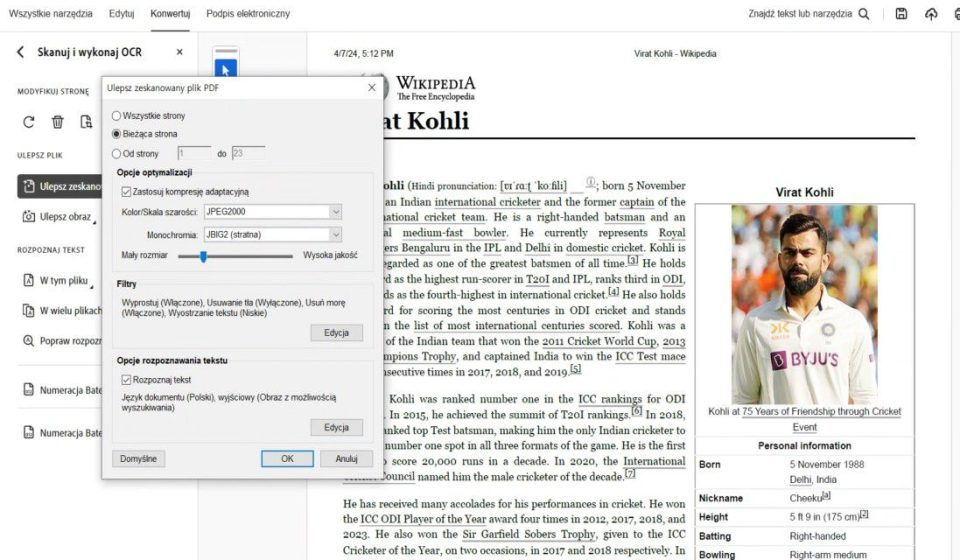
Adobe Acrobat scanned PDF enhancement and OCR settings
Document Tools

How to Make a Scanned PDF Searchable with OCR in Adobe Acrobat

By 66tools
October 11, 2026 2 Min Read
0

If you cannot search for a word inside a scanned PDF, the file may contain page images instead of selectable text. OCR (optical character recognition) analyzes those images and adds a text layer, making the document searchable and selectable.

What OCR does in Acrobat

Adobe explains that a scan can contain image data without searchable text. In Acrobat, the Scan & OCR tool recognizes text and creates a searchable text layer in the PDF. You can also choose a page range and recognition language, which is useful for long files or multilingual documents.

Run OCR on a scanned PDF

  1. Save a backup copy of the original scan.
  2. Open the PDF in Acrobat and select All tools > Scan & OCR.
  3. Choose In this file, then select the page range and document language.
  4. Select Recognize Text and save the processed PDF as a new file.
  5. Search for a few known words and try selecting text to confirm that recognition worked.

Review the OCR result

OCR is a recognition step, not a guarantee that every character is correct. Review names, account numbers, dates, amounts, and columns carefully. Acrobat can flag uncertain words for review; Adobe’s guide describes using the Correct recognized text workflow to inspect and fix them.

  • Improve the scan: straighten pages and use a clear, high-resolution image when possible.
  • Select the right language: language settings affect recognition, especially for non-Latin scripts.
  • Check tables separately: recognized words may be accurate while row and column relationships are not.
  • Keep the original: retain an untouched copy in case you need to compare the image and recognized text.

When is OCR useful?

OCR helps when you need to find a phrase in archived records, copy a passage from a scan, or make a paper document easier to work with. For a small number of pages, Acrobat’s single-document workflow is straightforward. Teams processing batches should check the available plan and desktop features, since bulk workflows can vary by product edition.

Frequently asked questions

Why can I see text but not select or search it?

The page may be an image of text. Run OCR to add a recognized text layer.

Does OCR always recognize every word correctly?

No. Image quality, skew, handwriting, language, and table layout can all affect accuracy. Review the extracted text before using it for important decisions.

Official guides: Recognize text in scanned PDFs · Correct recognized text

TOOLS ACCESS COMMUNITY

Unlock the Telegram group to access all tools on this site

A one-time payment of US$5 gives you access to the Telegram group and all tools on this site. No subscription.

Enable JavaScript to securely check payment and reveal the invite link.


Share this article

FFacebookXXWWhatsAppLLinkedInPPinterestTTelegram

Author

66tools

Follow Me
Other Articles
Smallpdf PDF to Word conversion steps
Previous

How to Convert PDF to Word: A Practical Guide to Smallpdf

Original illustration: compressing a PDF for easier sharing
Next

How to Compress a PDF Online for Email: Smallpdf Guide

No Comment! Be the first one.

Leave a Reply Cancel reply

Your email address will not be published. Required fields are marked *

Categories

  • AI Tools (66)
  • Audio Editors & DAWs (7)
  • Audio Tools (37)
  • Document Tools (39)
  • eSignature Tools (4)
  • Image Apps (65)
  • Online Document Editors (5)
  • PDF Converters (2)
  • PDF Editors (5)
  • PDF Readers (1)
  • PDF Utilities (3)
  • Podcast & Voice Tools (6)
  • Scanning & OCR (4)
  • Site Updates (1)
  • Uncategorized (1)
  • Video Apps (60)

Recent Posts

  • Grammarly Review 2026: AI Writing Assistant for Grammar, Clarity and Tone
  • FL Studio Review 2026: Popular Beat-Making DAW for Windows and macOS
  • Hemingway Editor Review 2026: Distraction-Free Writing Tool for Clear, Bold Prose
  • Camtasia Review 2026: Professional Screen Recorder and Video Editor for Tutorials
  • Polarr Review 2026: Online Photo Editor and AI-Powered Filters for Quick Retouching

Recent Comments

  1. Léirmheas Nano Banana Pro: Eagarthóir Íomhánna 4K AI Google – 66 Toolbox on Midjourney: Create Images and Explore Visual Ideas with AI
  2. Léirmheas Kling AI: Fís Físeáin le Fuaim Dúchasach agus Rialú Il-sheite – 66 Toolbox on CapCut Review: Quick Video Editing and Captions for Social Media
  3. Léirmheas Otter.ai: Nótaí Cruinnithe AI is Féidir Leat a Chuardach Níos déanaí – 66 Toolbox on Fireflies.ai Review: Searchable Notes for Meetings and Interviews
  4. Léirmheas Video Converter Factory: Comhshó Baisc agus Comhbhrú ar Windows – 66 Toolbox on PowerDirector Review: Desktop Video Editing with AI Features
  5. Léirmheas DaVinci Resolve: Eagarthú Grád Hollywood agus Grádú Dath in Aisce – 66 Toolbox on CapCut Review: The Free Video Editor Behind Most Viral Short Form Clips

Archives

  • October 2026

Categories

  • AI Tools
  • Audio Editors & DAWs
  • Audio Tools
  • Document Tools
  • eSignature Tools
  • Image Apps
  • Online Document Editors
  • PDF Converters
  • PDF Editors
  • PDF Readers
  • PDF Utilities
  • Podcast & Voice Tools
  • Scanning & OCR
  • Site Updates
  • Uncategorized
  • Video Apps

Friendly Links

  • YouTube
Copyright 2026 — 66 Toolbox. All rights reserved. Blogsy WordPress Theme